
You know your Google listing needs fresh posts, but opening the profile, picking a post type and writing something new every week keeps slipping down the list. Google now offers a shortcut. Eligible owners can post on Google Business Profile with Gemini, one of the AI tools we already use daily as part of our AI SEO services for businesses. You ask for a post in plain words, Gemini drafts it from your listing’s details, and nothing goes live until you confirm it. Below you will find who can use it, the four steps, five checks before you publish and quick fixes for when it won’t connect.
Quick answer: Open gemini.google.com with the personal Google account that owns your one verified listing, type @Google Business Profile and connect it. Then ask for a post with the offer, dates, area and button, check the draft, ask Gemini to schedule it and press Confirm Post. Nothing publishes until you confirm.
Key takeaways
- Google launched the Gemini connection for Business Profiles in June 2026 and is rolling it out gradually.
- You need a personal Google account that owns or manages only one verified listing, age 18+, and Keep Activity turned on.
- Type @Google Business Profile in Gemini, click Continue and then Connect, and ask for a post in one line.
- Gemini publishes nothing until you press Confirm Post, and it may show scheduled times in UTC (04:30 UTC is 10:00 AM IST).
- Give your prompt the exact offer, validity, area and button, or the draft comes out generic.
Contents
What can Gemini do for your Google listing?
Once connected, Gemini can create Update, Offer and Event posts, schedule them, and publish or delete them. It can also read and summarise your reviews, draft replies, work with your hours, photos and links, and show insights such as calls, direction requests and the search words people use to find you.
Google launched this in June 2026 and is rolling it out gradually, so it may not be on your account yet. The details here follow Google’s help page on managing your Business Profile with the Gemini web app and what we saw when we set it up ourselves.
New to Google posts? Decide what to post with our 4-week plan of Google Business Profile post ideas first. For review replies drafted by Gemini, follow our guide to the keywords hidden in your Google reviews: name the service naturally and never paste the same reply twice.
Who can connect Gemini to a Business Profile?
Right now Gemini connects only when you use a personal Google account that owns or manages a single verified listing, you are 18 or older, Keep Activity is on in your Gemini settings, and you work in a browser at gemini.google.com, on a laptop or in your phone’s browser.
- Personal account only. Work or school accounts on a company domain are not supported yet.
- One listing only. Accounts with several listings, such as agencies or franchises, are not eligible yet.
- Keep Activity on. If it is off, the connection doesn’t work.
If an agency manages your listing from its own multi-listing account, the owner’s personal account has to connect instead, one practical point when you weigh an SEO agency against a freelancer or an in-house hire. If everything is in place and you still see no option, the rollout may not have reached you yet.
How do I connect Gemini to my Google Business Profile?
Open gemini.google.com with the same Google account that owns the listing, then either use the connect card Gemini may show at the top or type @Google Business Profile in the prompt box and choose the connector. Approve the permission request once, and your listing is connected.
- Open gemini.google.com, signed in as the listing owner. If you are eligible, a card offering to connect your Business Profile may appear.
- Or type @Google Business Profile in the prompt box and choose the connector from the list.
- The first time, Gemini asks for permission. Click Continue, then Connect.
How do I ask Gemini for a good post?
Start your prompt with @Google Business Profile and say what you need, such as this week’s offer post. Gemini reads your listing and writes a draft, then waits. It publishes nothing until you press Confirm Post, so you stay in control of every word that goes live.
A one-line request often gives a generic draft. The difference between a weak and a strong prompt comes down to four details:
| Detail | Weak prompt | Strong prompt |
|---|---|---|
| Offer | “Make an offer post” | “20% off the first visit” |
| Validity | Not mentioned | “Valid till [date]” |
| Area | Not mentioned | “For customers in [area]” |
| Button | Left to Gemini | “Button: Call now” |
| Result | A vague “special offer” | A specific post you can check fast |
Add tone and length too, such as simple Hinglish and under 80 words. Then reply “make it shorter” or “make it friendlier” until it is right.
How do I schedule the post?
When you are happy with the draft, tell Gemini when to post it, for example “schedule this for tomorrow at 10 am”. Gemini shows the scheduled draft. Check the text and the time, then press Confirm Post. The post goes out at the set time, and Google may take a little while to review it.
Watch the time zone: Gemini may show UTC, and 04:30 UTC is 10:00 AM in India. Scheduled posts follow the same rules as any other, set out in Google’s guide to Business Profile posts.
What should I check before pressing Confirm Post?
Check five things every time: the offer, price and dates are real; there is no service or claim you don’t offer; the area name is right; there is no phone number in the text; and a real photo is on your profile. Gemini drafts quickly, but it can still guess.
- Offer, price and dates. Replace any vague “special offer” with real details.
- No made-up services or claims.
- The right area or city name.
- No phone number in the text. Posts with one can be rejected, so use the Call now button.
- A real photo. Real photos build more trust than generic ones.
“Draft Gemini likhega, par Confirm Post aap dabaate hain. Pehle check, phir post.” Gemini writes the draft, but you press Confirm Post. Check first, then post.
— Deep Bhardwaj
What if Gemini won’t connect or the post looks wrong?
Most problems come from the account, not from Gemini. Make sure you are signed in with the owner’s personal Gmail account, that Keep Activity is on, and that the account manages only one listing. If the post itself is weak, add the offer, date, area and button to your prompt and ask for edits.
- No @Google Business Profile option: switch to the personal Gmail account. If you already use it, the rollout may not have reached you.
- It won’t connect: open Gemini settings, then Activity, turn Keep Activity on and try again.
- Still no connect option: the account probably manages more than one listing.
Pro tip: ask Gemini which search words people use to find your business, then ask it to draft your next posts around those words. It is a small taste of how AI agents now take over routine SEO workflows, while the judgement stays with you.
What should I ask Gemini to post each week?
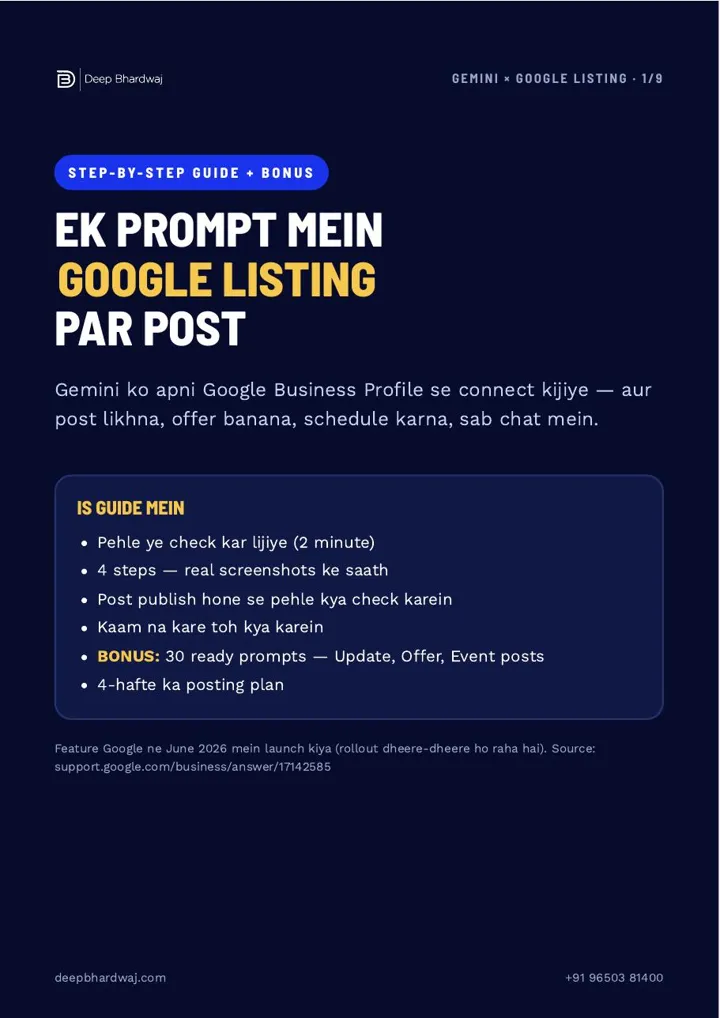
The free guide includes 30 ready prompts: ten for Update posts, ten for Offer posts, and ten for Events plus smart requests, such as reading your last 30 days of performance or finding the top themes in recent reviews. It also maps them into a simple four-week posting plan.
It runs an offer, a review thank-you, a search-words post and an event or festive post. Fresh, specific posts keep a listing strong as AI answers take more space, which is how small businesses can still win the map pack after AI Overviews.
Is it worth posting with Gemini?
For most single-location owners, yes. When you post on Google Business Profile with Gemini, the writing and scheduling take a minute, but the judgement is still yours: a real offer, real dates, a real photo and a quick check before Confirm Post. Gemini makes posting faster. A plan makes it worth reading.
Gemini is also one of the AI engines your customers ask for recommendations, a separate job explained in our guide to GEO and AEO and in the 2026 playbook for ranking in ChatGPT, Perplexity and Gemini.
Want an experienced SEO expert in India to look at your listing and website first? Book a free SEO audit and we will show you what to fix.
Services that help with this
- AI SEO services: Visibility in Google’s AI features, Gemini and ChatGPT, alongside your normal search rankings.
- Local SEO services: Ongoing Google Business Profile work, so posts, reviews and categories keep pulling in calls.
- Free SEO audit: A free review of your website and listing that shows what to fix first.
TL;DR
- Gemini can now draft, schedule and publish Google Business Profile posts for eligible accounts.
- Eligibility: a personal account managing one verified listing, age 18+, and Keep Activity on.
- Give the offer, dates, area and button in your prompt, then edit the draft in chat.
- Check facts, time zone, phone number and photo before you press Confirm Post.
Frequently asked questions
Does this work in the Gemini mobile app?
Not at the moment. The Business Profile connection works in a browser at gemini.google.com, on a laptop or in your phone’s browser. If you open the Gemini app and can’t find the connector, switch to the browser and sign in with the personal Google account that owns your listing. The rollout is gradual, so features may change over time.
How do I disconnect Gemini from my Business Profile?
Go to gemini.google.com/apps, find Google Business Profile in the list and turn it off. That removes Gemini’s access to your listing from the chat. If you want to use it again later, follow the same steps as the first time: type @Google Business Profile in the prompt box, choose the connector, then click Continue and Connect.
Can I write my Gemini prompts in Hindi or Hinglish?
Yes. Gemini accepts prompts in Hindi and English, and Hinglish works too. You can also ask it to write the post itself in simple Hinglish if that suits your customers. Whatever the language, include the same details: the exact offer, how long it is valid, the area and the button, so the draft from the Gemini Google Business Profile connector needs fewer edits.
Can Gemini reply to my Google reviews for me?
Gemini can read your reviews, summarise them and draft replies once your profile is connected. Treat each draft as a starting point. Read it, add the customer’s name and the service they took, and make sure it doesn’t repeat a line you have used before. Personal replies build more trust than ones that sound automatic, especially on negative reviews.
Will posts written by Gemini hurt my listing?
What matters is what the post says. The real risks are a wrong offer or date, a service you don’t provide, a phone number in the text, which can get a post rejected, or the same post repeated. Check every draft before you press Confirm Post, keep each post specific and useful, and add your own photo.