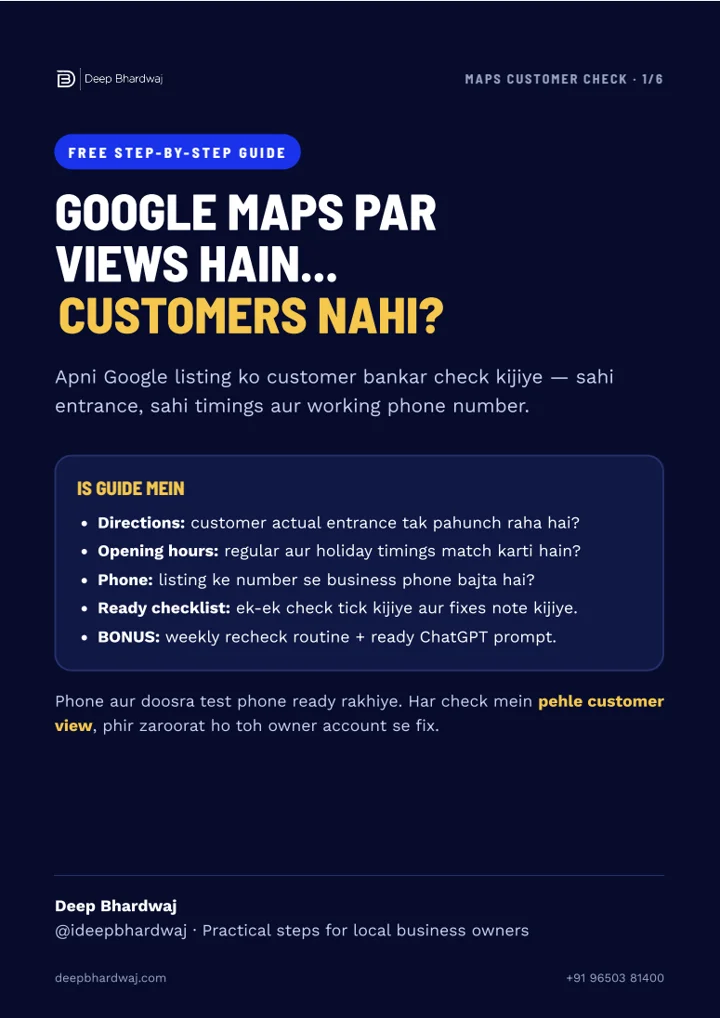

Your listing gets attention, but the phone stays quiet. When your Google Business Profile is not getting calls, start with the customer journey before buying more traffic; our local SEO services in India review both visibility and the practical steps that turn interest into an enquiry. Can a first-time visitor reach the correct entrance? Do the published hours match the day they plan to visit? Does the public number actually connect to your team? This guide helps Indian business owners test those three basics, record the result and decide what to investigate next. Watch the short Hinglish Reel, then download the six-page checklist for your next review.
Quick answer: If your Google Business Profile is not getting calls, test the customer journey first: follow Directions to the entrance, compare regular and holiday hours with your actual schedule, and call the public number from another phone. Fix any mismatch, then compare profile interactions with real enquiries before deciding what needs further investigation.
Key takeaways
- A nearby pin is not enough: test where the route actually ends.
- Regular weekly hours and holiday exceptions need separate checks.
- A correct-looking phone number still needs a real connection test.
- Profile call clicks do not prove that your team answered a call.
- Use the six-page worksheet to record the issue, owner and recheck.
Contents
Why is a Google Business Profile not getting calls?
A visible profile can still lose enquiries when customers cannot reach the entrance, trust the opening hours or connect to the business number. Start with these customer checks before treating every quiet day as a ranking problem. They diagnose avoidable friction; they do not explain every change in demand or visibility.
Separate discovery from delivery. First, can someone find the right listing? Next, can they complete the journey? Finally, does the team answer and help? Our explanation of Google Business Profile ranking factors covers visibility; this checklist focuses on what happens after someone finds you.
Record the date and what actually failed. A view is not an enquiry, and an enquiry is not a confirmed appointment. Keeping those stages separate makes the next decision clearer.
How do I check whether Maps reaches the correct entrance?
Open your public listing on another phone and request Directions from a realistic starting point. Follow the route to its arrival point, then compare that point with the entrance customers actually use. A pin beside the building can look convincing while a visitor still reaches the wrong gate or road.
- Search the business name and confirm the correct branch.
- Start Directions from a nearby public location, rather than inside the premises.
- Check the final turn, road access, signboard and usable entrance.
- Save a screenshot of any mismatch and describe the specific problem.
If the business address or marker is inaccurate, review those details in your managed profile. If those are correct but road navigation is wrong, use Google’s wrong-directions reporting steps on a computer where available. Avoid moving a correct business pin merely to compensate for a road problem.
Use our Google Maps ranking audit guide separately when the issue is finding your listing, rather than reaching it.
How should I check regular and holiday opening hours?
Compare the hours a customer sees with the hours your team can actually serve them. Review the normal weekly schedule and upcoming exceptions separately. A correct Monday-to-Saturday schedule does not settle what happens on a festival, a one-day closure or a day when you close earlier than usual.
Open Edit profile, check Hours, then add or confirm relevant Special hours. Google explains how to set special hours for holidays and temporary schedule changes. Confirm the public result after the change is accepted.
Write the same practical information on your booking page and entrance notice. If a visitor can arrive shortly before closing, make the service cut-off clear through the appropriate customer communication. Choose one person to confirm festival dates with the team; otherwise an old assumption can survive another year.
How do I test whether a customer can actually call?
Use a second phone to call the number shown on the public profile during your advertised hours. Listen for the connection, confirm which handset or team receives it and check what happens when nobody answers. Looking at a correct-looking number in the editor does not test the receiving end.
Use the calling control where it is available, and also compare the displayed digits with the number your team expects. Check an engaged line, voicemail or call forwarding if those affect your setup. Google's business representation guidelines require a number that connects to the individual business location and is under its control.
Agree who handles missed enquiries and when they respond. If customers continue to your website, test that contact journey too. Our website design service can help fix an unclear contact page or a broken mobile enquiry form.
What should I record when a check passes or fails?
Record an observable outcome rather than a general feeling that the listing looks fine. A useful check names the journey, the evidence and the person responsible for the next action. The comparison below turns three vague checks into results you can repeat after a change or before a busy period.
| Check | Too shallow | Useful evidence |
|---|---|---|
| Directions | The pin looks near the shop | The route ends at the usable entrance |
| Hours | The weekly schedule was entered once | Public regular hours and upcoming exceptions match the team schedule |
| Phone | The digits look right | A second phone connects to the intended receiving team |
The accompanying Reel uses an animated wrong-location scenario to explain the problem. That scene is illustrative, not a claim that the business pictured has incorrect information. The six-page guide turns the three checks into a printable worksheet; it does not claim a measured increase in calls.
What should I check if all three tests pass?
Compare the same date ranges for profile views, interactions and actual enquiries, then look for the stage that changed. Passing the checklist removes some practical obstacles. It does not prove that the profile reaches the right audience, that demand is steady or that every interested visitor chooses to call.
“Calls: The number of times a customer clicked on the call button on your Business Profile.”
Google Business Profile Help, “Understand your Business Profile performance”
A click count therefore needs to be read alongside your own answered-call record. For a wider measurement plan, our digital marketing services connect website and enquiry reporting. Keep organic profile activity separate from paid campaign reporting.
Review service relevance and useful customer information next. Our article on local SEO after AI Overviews explains the wider discovery picture. Combine it with a consistent monthly Search Console review for your website, while remembering that website reports and profile reports measure different things.
What is the next step if the profile still gets no calls?
If your Google Business Profile is not getting calls, fix the failed customer checks first and save the before-and-after evidence. When the basics pass, investigate visibility, relevance and the enquiry journey together. Repeat the checklist after a change of location, number, staffing or holiday schedule so old problems do not return.
Before paying for more traffic, compare the work required with our explanation of SEO costs in India. For a specific diagnosis, request a free SEO audit of your website and listing and share the checks you have already completed. That gives the review a concrete starting point.
Services that help with this
- Technical SEO services: Investigate website access and technical issues when the contact journey continues to your site.
- SEO packages: Compare ongoing support when you need regular website and search work.
TL;DR
- Test the route to the real customer entrance.
- Check weekly hours and holiday exceptions separately.
- Call the public number and confirm who receives it.
- Fix proven problems, then investigate the remaining enquiry gap.
Frequently asked questions
How do I enable the call option in my Google Business Profile?
Check that a valid business phone number is saved and not hidden. In Business Profile settings, open Advanced settings and review the phone-number visibility control. Google’s advanced-settings help distinguishes this from allowing automated calls. The customer interface can vary, so confirm the public result on a phone. Adding a number does not guarantee an identical calling button in every Google surface.
Why isn't my phone number showing on my Google Business Profile?
Check whether the number is hidden, whether your latest edit is still pending and whether you are looking at the correct branch. Compare the managed profile with the public listing rather than repeatedly submitting the same change. Google reviews edits before accepting them. If the information was rejected, inspect the stated issue and the available support or appeal route before trying again.
Why is Google business rejecting my phone number?
Google may reject an edit when it cannot confirm the information's accuracy. Check that the number connects to the individual business location and is controlled by the business. Keep supporting evidence ready, such as the matching number on your official website. Follow the rejected-edit guidance shown for your profile; do not assume every rejection has the same cause or that repeated edits will resolve it.
Does Google call you about your business profile?
Google may call to confirm business details or help with customer requests. That is different from a salesperson asking you to pay to keep your listing active. Google’s automated-call guidance says it will not ask for payment, card information or account passwords in these calls. If a caller pressures you for money or access, end the call and check your profile directly.
How long does it take for Google to update a phone number?
Google says Business Profile edits usually take up to ten minutes to review, but sometimes can take up to thirty days. The public number changes after the edit is accepted; saving an edit is not the same as approval. Check the pending, accepted or not-approved status in your profile. Those review timings are guidance, rather than a promise that every phone change will finish immediately.