
You picked the right keywords, the clicks are coming in, and yet the phone is quiet. The Google Ads search terms report usually explains why. It shows what people actually typed before they clicked your ad, and for many local businesses a good share of that money goes to searches like “free”, “job” or “course”. Careful Google Ads management starts with this one report, whether you run a clinic, a salon, an AC repair service or an online store. This guide shows where to find it, which searches to mark, how to block them with negative keywords and the 10-minute weekly check that keeps your budget on real customers.
Quick answer: The Google Ads search terms report lists the real searches that triggered your ads and got clicks. Open Insights and reports, then Search terms, set 30 to 90 days and sort by cost. Mark free, job, course, wrong-service and wrong-area searches, then select them and choose Add as negative keyword.
Key takeaways
- Your keyword and the customer’s actual search are not the same thing.
- Find the report under Insights and reports → Search terms, last 30 to 90 days.
- Sort by cost and mark free, job, course, wrong-service and wrong-area searches.
- Block single words like free, job, jobs and course as negative keywords.
- Repeat the check for 10 minutes every week; new searches appear all the time.
Contents
What is the Google Ads search terms report?
It is the list of real searches that triggered your ads and got clicks. Your keyword is what you told Google; the search term is what the customer actually typed. If you add “ac repair”, your ad can still show for “ac repair course” or “free ac repair”. The report shows every one of those searches with its cost.
Google describes it as a way to see how your ads performed when triggered by actual searches on the Search Network. In plain words, it is the closest thing you have to reading your customers’ minds.
Most business owners never open it. They check clicks and spend, see numbers going up, and assume the money is reaching buyers. The search terms report is where you find out whether it is.
Why does your ad show for searches you never added?
Because Google matches your keywords to searches it thinks are related, not only to the exact words you typed. That reach helps you find new customers, but it also brings in people looking for jobs, courses, free help or a service you do not offer. Each of those clicks is paid for by you.
This is normal behaviour, not a fault in your account. The fix is not to panic and pause the campaign. The fix is a short routine: read the real searches, mark the wrong ones and block them.
The same principle applies outside ads. On the organic side, a 20-minute monthly Google Search Console routine shows the real queries that bring people to your website. Paid or free, the real search data beats guesswork.
How do you open the search terms report?
In Google Ads, go to Insights and reports, then Search terms. Set the date range to the last 30 or 90 days, choose the right campaign or ad group, and make sure the Cost, Clicks and Conversions columns are visible. Every line you see is a real search where your ad showed and was clicked.
- Open Google Ads and pick the right account.
- Go to Insights and reports, then Search terms.
- Set the date range at the top to the last 30 to 90 days.
- Filter to the campaign or ad group you want to check.
- Add the Cost, Clicks and Conversions columns if they are missing.
- Sort by Cost so the most expensive searches come to the top.
Google changes labels from time to time, so the menu may look slightly different in your account. The path above is the one the guide uses.
Which searches are wasting your budget?
Sort by cost and read each line. Five types of searches usually waste money for a local business: people wanting something free or do-it-yourself, job seekers, people looking for a course, searches for a service you do not offer, and searches from a city or area you do not serve. Mark every one of them.
| Type of search | Example (AC repair business) | Will they buy? |
|---|---|---|
| Free / DIY | “free ac repair”, “ac repair video” | Rarely, they want to fix it themselves |
| Job seekers | “ac technician job”, “salary” | No, they want to work for you |
| Course / training | “ac repair course” | No, they want to learn the trade |
| Service you do not offer | “car ac repair” (if you only do home AC) | No, wrong service |
| Wrong city or area | Areas you do not serve | No, you cannot reach them |
The examples come straight from the guide. Swap in your own trade: a clinic will see “nursing job”, a salon will see “beautician course”. Searches in Hindi or Hinglish appear here too, which is a useful reminder of how Indian customers mix Hindi and English when they search.
Also look at the good lines. A search that brought calls or forms is worth adding as a keyword of its own and deserves a landing page built for that exact service.
How do you add the wrong searches as negative keywords?
Tick the wasteful searches in the report and choose Add as negative keyword. From then on your ad will not show for those searches. Google’s help page explains that negative keywords let you exclude search terms from your campaigns, so your budget goes to the people who matter.
The guide’s rule is to block single words such as “free”, “job” or “course” rather than whole phrases, so the many versions of the same unwanted search stop together. Google notes that negative keywords do not cover close variants, which is why the guide lists both “job” and “jobs”. Add plural and singular forms yourself.
- Account level: common negatives such as free, job, jobs, salary, course, training.
- Campaign level: services you do not offer and areas you do not serve.
- Careful: never block a word your real customers also type.
Your keyword is what you told Google. The search term is what the customer actually typed. Read the second list every week.
— Deep Bhardwaj
If an agency manages your ads, ask to see this list. Good digital marketing management shows you the search terms and the negatives added each month, the same way a useful monthly SEO report shows what changed and why.
How often should you check search terms?
Every week, for about 10 minutes. New searches appear all the time, so a one-time clean-up is not enough. Open the report, sort by cost, block what is wrong and note any good searches worth their own keyword. Ten minutes a week keeps most wasted clicks from piling up.
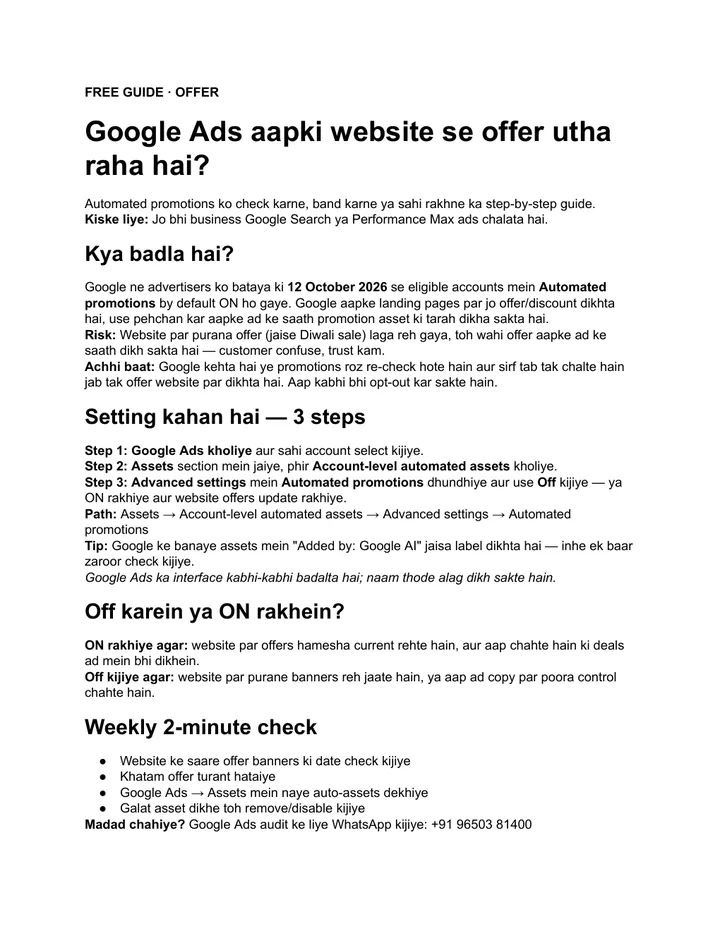
Pair this with the other settings Google can switch on for you. Our guide to Google Ads automated promotions covers another default worth checking. If paid clicks still do not turn into calls, check the page they land on. Fixing website speed for Indian mobile users often matters as much as the keyword list.
Ads and SEO also work best together. Showing up on Google Maps for the same searches through local SEO for your service area means you pay for fewer clicks over time. Read when SEO beats paid ads and when ads win before you decide where next month’s budget goes.
What should you do today?
Open the Google Ads search terms report, set the last 30 to 90 days, sort by cost and read the top 50 lines. Block the free, job, course, wrong-service and wrong-area searches, then put a 10-minute weekly check in your calendar. If you want a second pair of eyes on your account and landing pages, ask for a free audit of your website and ads.
Services that help with this
- Google Ads management: Weekly search terms reviews and negative keyword lists so your budget reaches real buyers.
- Website design: Service landing pages that turn the right clicks into calls and forms.
- Local SEO: Win the same searches organically on Google Maps so you depend less on paid clicks.
TL;DR
- The search terms report shows what people really typed before clicking your ad.
- Open Insights and reports → Search terms, 30 to 90 days, sorted by cost.
- Block free, job, course, wrong-service and wrong-area searches as negatives.
- Check new search terms for 10 minutes every week.
Frequently asked questions
What is the difference between a keyword and a search term in Google Ads?
A keyword is the word or phrase you add to your campaign to tell Google which searches you want. A search term is the exact text a person typed before your ad showed. One keyword can match many different search terms, some useful and some not. That is why checking the search terms report matters more than checking the keyword list alone.
Can negative keywords block my real customers by mistake?
Yes, if you choose them carelessly. If you block a word your buyers also use, your ad will stop showing to them. Before adding a negative, ask whether a paying customer could type that word. Words like free, job, salary or course are usually safe for a local service business, but check your own search terms before adding any of them.
Should I add negative keywords at account level or campaign level?
Use the account level for words that are never useful to your business, such as job, salary or training, so every campaign is protected at once. Use the campaign level for things that depend on the campaign, such as a service one campaign does not cover or an area outside its target. This keeps your lists tidy and easy to review.
Why do I not see every search term in the report?
Google does not list every single search in the report, so some lines with low volume may be missing. Focus on what you can see, especially the lines with the highest cost. Those are where most wasted spend sits. Reviewing them every week still catches the bulk of the problem for most local business accounts.
How much budget can I save by checking search terms every week?
It depends on your account, your keywords and how long the campaign ran without a check, so there is no fixed number. What usually happens is that money spent on clearly wrong searches drops once negatives are added, and more of the same budget reaches people who can buy. Track cost per enquiry before and after to see your own result.