
You run Google Ads, you check your ad copy carefully, and then a customer calls asking for a discount that ended weeks ago. With Google Ads automated promotions, that can now happen without you writing a word. Google can read the offers on your landing pages and show them next to your ads as a promotion. According to Google’s notice to advertisers, the setting is on by default in eligible accounts from 12 October 2026. Good Google Ads account management now includes checking what Google adds on your behalf. This guide shows where the setting sits, when to keep it, when to switch it off, and a weekly check that keeps old offers out of your ads.
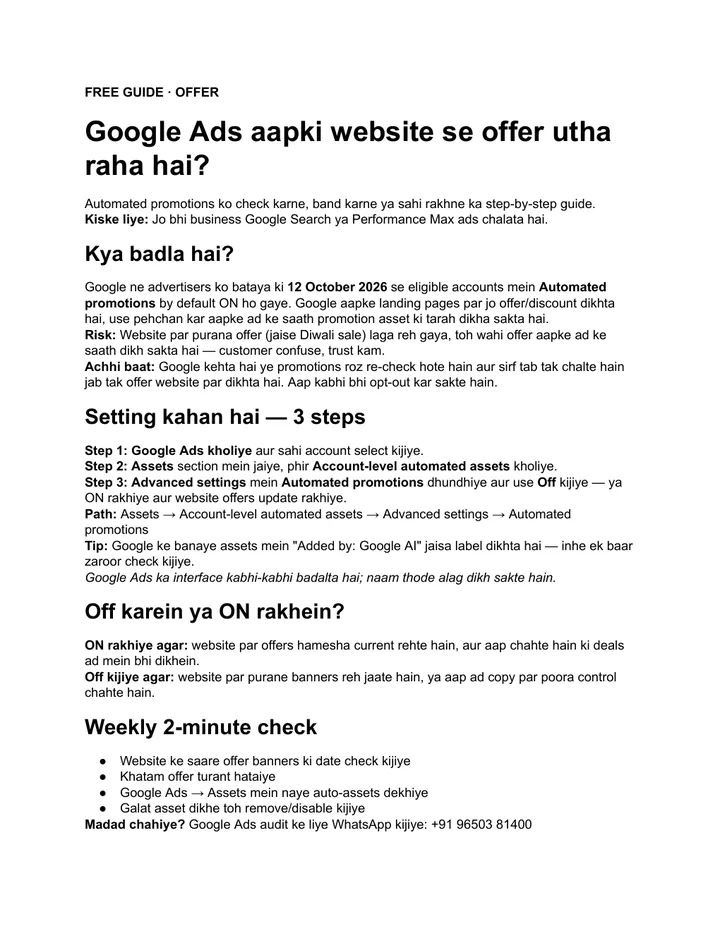
Quick answer: Automated promotions are promotion assets Google creates from offers it finds on your website and shows with your Search or Performance Max ads. To check or switch them off, open Assets, then Account-level automated assets, then Advanced settings, and set Automated promotions to Off. Or keep it on and keep every website offer current.
Key takeaways
- From 12 October 2026, automated promotions are on by default in eligible Google Ads accounts.
- Google reads the offers and discounts on your landing pages and can show them with your ads.
- An old banner, such as a finished Diwali sale, can end up in your ad and confuse customers.
- The switch is under Assets → Account-level automated assets → Advanced settings.
- Keep it on only if every offer on your website is always current; otherwise switch it off.
Contents
What are automated promotions in Google Ads?
They are promotion assets that Google creates for you. Google looks at the offers and discounts shown on your landing pages and can display them alongside your Search or Performance Max ads, even if you never added a promotion yourself. The ad text stays yours; the offer line comes from your website.
Promotions belong to a wider family of account-level automated assets that Google adds to ads, some of them built from landing page content. Google shows them when it predicts they will help performance, which is why many advertisers only notice them after a customer mentions an offer.
If you run Search or Performance Max campaigns, assume this applies to you until you have checked the setting yourself.
What changed on 12 October 2026?
Google told advertisers that from 12 October 2026, automated promotions are switched on by default in eligible accounts. Nobody had to opt in. If your account qualifies, Google may already be pairing your ads with offers it found on your website, and you can opt out at any time.
There is a safeguard. Google’s help page on automated promotions says each promotion is eligible to serve for less than 24 hours and is re-enabled only while Google can still verify the offer is visible on your website. In the guide’s words, promotions are re-checked every day.
The catch is that Google treats your website as the source of truth. If your website is out of date, your ads can be out of date too.
Why can an old offer end up in your ad?
Because Google reads whatever your landing page shows today. If a Diwali sale banner is still live in November, Google sees an active offer and can promote it. The customer clicks, finds no discount at checkout or at the counter, and trust drops before the conversation even starts.
This is common on Indian business websites. Festive banners, coupon strips and “limited period” pop-ups get added in a hurry and rarely get removed. Online stores are the most exposed, which is why our ecommerce SEO services include a check of sale and collection pages, and why the Shopify SEO fixes for Indian D2C brands stress keeping those pages tidy.
There is a money cost too. Every click from a customer expecting an expired discount is a click you paid for that was unlikely to turn into a sale.
How do you find the automated promotions setting?
Open Google Ads, go to Assets, open Account-level automated assets, then Advanced settings, and find Automated promotions. From there you can switch it off or leave it on. The full path takes under a minute once you know where to look, and you can change your mind later.
- Open Google Ads and select the right account. Business owners with more than one brand often have several.
- Go to the Assets section, then open Account-level automated assets.
- Open Advanced settings and find Automated promotions.
- Choose Off if you want full control, or leave it on and keep your website offers current. Google may ask for a reason when you switch it off.
- Go back to Assets and look for items added by Google AI. Check each one once.
Google Ads changes its interface from time to time, so labels can look slightly different in your account. The guide’s tip: assets Google created carry a “Google AI” label in the Added by column, which makes them easy to spot.
Should you keep automated promotions on or switch them off?
Keep them on if your website offers are always current and you want deals to appear in your ads with no extra work. Switch them off if old banners tend to stay up, or if you want full control over every word next to your ad. The table below makes the choice quick for most businesses.
| Your situation | Keep it on? | Switch it off? |
|---|---|---|
| Website offers are removed the day they end | Yes, deals show with no extra work | Not needed |
| Festive banners stay up for weeks | Risky, old offers can reach your ad | Yes, until the website is cleaned up |
| You want full control over what your ad says | Not ideal | Yes |
| Nobody opens the Assets section | Risky | Safer, or start the weekly check |
Either way, the landing page now matters more. A clear offer block with an end date helps both the promotion and the customer who clicks. A website built so offers are easy to update or remove saves you from this problem, and fixing website speed for Indian mobile users makes sure the customer actually sees the offer.
Your website now writes part of your ad. Keep it as current as the ad itself.
— Deep Bhardwaj
What should your weekly 2-minute check include?
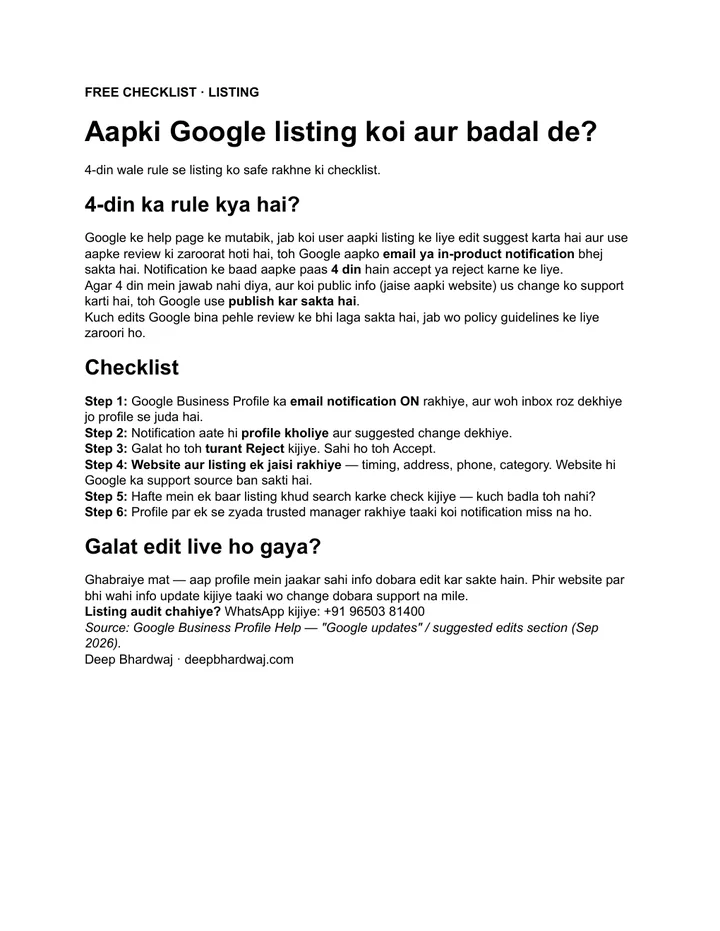
Once a week, check the date on every offer banner on your website, remove any offer that has ended, open Assets in Google Ads to see new automatically created assets, and remove or disable anything wrong. Two minutes a week is enough to keep expired offers out of your ads.
- Check the date on every offer banner on the website.
- Remove any offer that has ended, the same day.
- Open Google Ads → Assets and look at new auto-created assets.
- Remove or disable any asset that is wrong.
Add this to the review you already do. If you look at your wider digital marketing results every month, a weekly look at assets is a small addition. Automation saves time, but someone still has to check it, the same lesson as which marketing jobs AI tools handle well and which still need a person.
If paid clicks still are not turning into enquiries, watch what visitors do on the page. Our Microsoft Clarity setup guide shows how to see real sessions at no cost.
What is the next step?
Google Ads automated promotions are not good or bad on their own. They help when your website is accurate and hurt when it is not. Open the setting today, decide on or off, and put the weekly check in your calendar. For a second pair of eyes on your ads and landing pages, ask for a free audit of your website and landing pages, or read when SEO beats paid ads and when ads win before you plan next quarter’s budget.
Services that help with this
- Google Ads management: Audit automated assets, promotions and search terms so your budget reaches real customers.
- Website design: Landing pages with offer sections that are easy to update or remove.
- Digital marketing: Keep your ads, website and listings saying the same thing every week.
TL;DR
- Google can now show offers from your website as promotions with your ads.
- It has been on by default in eligible accounts since 12 October 2026.
- Find it under Assets → Account-level automated assets → Advanced settings.
- Keep it on only with current offers; check assets for two minutes every week.
Frequently asked questions
Will switching off automated promotions hurt my ad performance?
Google adds automated assets when it predicts they will improve results, so switching promotions off removes that extra line from some ads. For most local businesses the bigger risk is an expired offer reaching customers. If you want promotions without that risk, you can add your own promotion asset with a clear start and end date, so you decide exactly what runs and for how long.
Can I turn off one wrong promotion instead of the whole setting?
Yes. On the Account-level automated assets settings page, Google lets you choose which automated asset types to turn off and asks for a reason before you save. You can also review the individual assets in the Assets section and remove anything that should not appear. If one wrong offer keeps returning, the real fix is to remove that offer from your website, because that is where Google reads it.
Does this apply if I only have a Google Business Profile and no ads?
No. Automated promotions are a Google Ads asset, so they only appear with paid Search or Performance Max ads. If you do not run ads, nothing changes for you here. Still, keep offers on your website and Google listing current, because customers compare what they see in search with what they find when they call or visit.
How do I know if Google already showed a promotion with my ads?
Open Google Ads, go to Assets and look at the Added by column. Assets created automatically are labelled as Google AI, which separates them from the ones you added. Then open your website and list every offer that is visible today. If an offer there has ended, remove it first, then decide whether to keep the setting on.
Who should check the setting if an agency runs my Google Ads?
Ask your agency to confirm the current setting in writing and to include automated assets in their monthly report. You stay responsible for your website, so agree on who removes offer banners when a sale ends. A two-minute shared checklist each week, covering website offers and new assets, avoids most surprises and keeps your ad budget focused on customers who can actually buy.