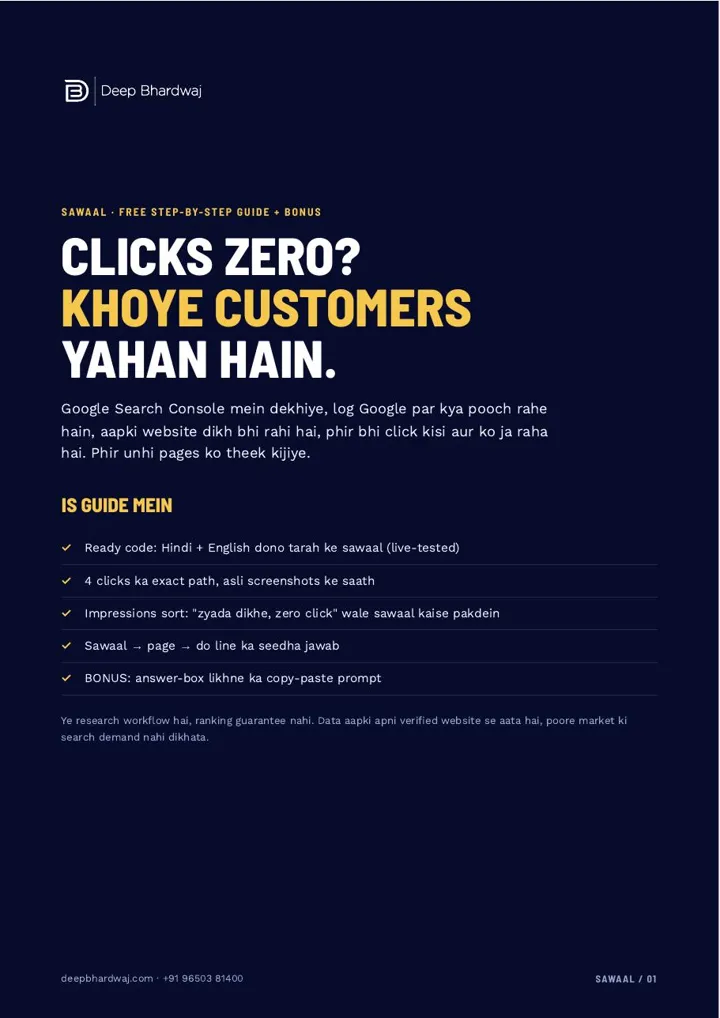

Your website shows up on Google, yet the enquiry count barely moves. Often the reason is hiding in plain sight: people are asking real questions, your page appears for them, and they click someone else. Google Search Console question keywords show you exactly which questions those are, using data from your own verified website. Our technical SEO services start with the same report before touching any page. This guide gives you a ready-to-paste filter code that catches Hindi and English question words, the four-click path to apply it, a way to spot “high impressions, zero clicks” questions, and a simple method to fix the page that should be answering them. No new blog is needed for most questions.
Quick answer: In Google Search Console, open Performance, add a Query filter with a custom regex that matches question words such as what, how, kya and kaise, then sort by Impressions. Questions with many impressions and zero clicks are lost customers. Fix the page Google already shows with a direct 40–60 word answer and a clearer title.
Key takeaways
- One regex catches searches starting with Hindi or English question words.
- Use a three-month range, or six months for low-traffic sites.
- High impressions with zero clicks means people saw you and chose someone else.
- Fix the existing page with a 40–60 word answer instead of writing a new blog.
- Note the change date and compare clicks for the same question after four weeks.
Contents
Why do people see your website but still not click?
Usually because the result they see does not promise a clear answer to the question they typed. Search Console separates impressions (your result was shown) from clicks (someone opened your page). When a question earns many impressions and zero clicks, people saw you and chose another result.
Google defines both metrics in its Performance report help page: an impression is counted when your site appears in results, and a click when a user opens it. The gap between the two is where lost customers sit.
In the capture used in the guide, a client website (a UX and design agency) had the question filter applied on 28 October 2026. It showed 6.04K impressions and only 6 clicks. That is the pattern this method is built to find. With more searches ending without a click in 2026, every question you are already visible for matters.
How do you open the right report in Search Console?
Open Search Console, select your own verified property, go to Performance → Search results, set the date range to three months and tick both Clicks and Impressions. If your site gets little traffic, use six months so enough questions appear in the table.
Check the property selector carefully. Use only your own website or one you are authorised to manage. Impressions tell you how often your result was shown; they are not the monthly search volume of the whole market. If you already follow a 20-minute monthly Search Console routine, this filter becomes one more check in it.
What filter code finds question keywords?
Use a custom regex that matches searches starting with a question word, in Hinglish or English. The guide’s code was tested live in Search Console on 28 October 2026. Copy it as one line, with no spaces or line breaks:
^(kya|kaise|kitna|kitne|kaun|kab|kahan|kyun|kyu|what|how|why|when|where|which|who|can|does|is|are|should)\b
The ^ checks the first word of the search. The brackets hold the list of question words. The \b makes sure only whole words match, so “island” or “howard” are not picked up. Indian customers often mix languages, which is why Hindi and Hinglish search behaviour deserves its own words in the list.
Add the words your customers use, such as “konsa”, “best” or “price”, separated by a |. Search Console treats capital letters differently, but most searches arrive in small letters. If something seems missing, add (?i) at the start of the code.
How do you apply the filter in four clicks?
In the Performance report, click “+ Add filter”, choose Query, switch the dropdown to “Custom (regex)”, keep “Matches regex”, paste the code and press Apply. Before applying, check that the end of the pasted code still shows \b.
- Click “+ Add filter” above the chart and choose Query.
- Select “Custom (regex)” from the dropdown and leave “Matches regex” selected.
- Paste the code as one line and confirm it ends with
\b. - Press Apply, then click the Impressions heading in the table to sort.
The table now lists only question searches, most visible first. This is a research workflow on your own data. It shows where you are already visible, not a promise of rankings.
Which questions are costing you customers?
The ones with high impressions and zero or very few clicks, on topics your business actually serves. After sorting by Impressions, scan the Clicks column for zeros. Ignore questions unrelated to your services, however large their numbers look, because traffic from them rarely becomes an enquiry.
The real example in the guide is the question “what is cognitive bias”. It sat on Google’s first page with an average position of 5.9 and was shown 641 times, yet received 0 clicks. Visibility was not the problem; the result simply did not win the click.
| What you see in the table | What it usually means | What to do |
|---|---|---|
| High impressions, 0 clicks | People saw you and chose another result | Add a direct answer and a clearer title |
| High impressions, some clicks | The page partly answers the question | Move the answer higher and tighten it |
| Low impressions, unrelated topic | Not your customer | Skip it |
| Low impressions, core service | Early visibility for a useful question | Note it and recheck next month |
If several high-value questions are stuck on page one without clicks, a free SEO audit of your website can show whether titles, page structure or technical issues are holding them back.
How do you fix the page instead of writing a new blog?
Click the question, open the Pages tab to see which URL Google shows for it, then add a two-line direct answer at the top of that page. Put the question as a heading and answer it in 40–60 words, followed by detail, an example and a source.
This is the same answer-first structure that helps AI search engines quote a page, explained in our guide to GEO and AEO for Indian businesses and in our article on how pages get cited in Google AI Overviews. Google’s own advice on creating helpful, people-first content points the same way: answer the reader’s real need.
Then check the title and meta description. Google explains how it builds the blue headline in its guide to influencing title links. Write a title that promises the answer, so people have a reason to click.
Naya blog nahi, seedha jawab. The page Google already shows for the question is usually the fastest one to fix.
— Deep Bhardwaj
The guide’s bonus prompt asks an AI assistant for a heading, a 40–60 word answer, a better title of up to 60 characters, a meta description of up to 155 characters, and a list of facts to verify. It tells the assistant not to invent facts, numbers or results. Treat the draft as a starting point and check every claim yourself, the same way our AI SEO services team reviews AI-assisted copy.
What should you check before publishing the change?
Run four checks: the question relates to your business, the answer is true and verified from a source, it solves the reader’s actual problem, and you have noted the date of the change. That date lets you compare clicks for the same question four weeks later.
Be patient with the comparison. Search changes take time, which is why realistic SEO timelines matter when you judge a fix. If you run ads too, compare paid and organic answers for the same question before deciding whether SEO or Google Ads fits that query better. For local businesses, the Maps side of the same idea is covered in our Google Business Profile search terms guide.
What is the next step?
Open your property, paste the code, sort by impressions and pick three relevant questions with zero clicks. Fix those pages with a direct answer and a clearer title, note the date, and recheck in four weeks. Google Search Console question keywords turn your own data into a short, practical to-do list.
Services that help with this
- Technical SEO: Find and fix what stops visible pages from earning clicks.
- AI SEO (GEO/AEO): Structure answers so Google and AI engines can quote your pages.
- SEO services: Turn Search Console data into a monthly content and page plan.
TL;DR
- Filter Search Console queries with one question-word regex.
- Sort by impressions and look for zero-click questions you serve.
- Add a direct answer and a better title to the page Google already shows.
- Record the date and recheck clicks four weeks later.
Frequently asked questions
Is Google Search Console free to use?
Yes. Google Search Console is a free service from Google for website owners. You need to verify that you own or manage the website before you can see its data. Once verified, the Performance report shows the searches where your pages appeared, along with clicks, impressions, click-through rate and average position. The question filter in this guide works on any verified property without paid tools.
Why does my question filter show no results?
First check that you selected the right property and a long enough date range; low-traffic sites may need six months. Then confirm the code was pasted as one line and still ends with \b. Search Console treats capital letters differently, so add (?i) at the start if you expect matches. Finally, your site may simply not appear yet for question-style searches.
Are impressions the same as search volume?
No. Impressions count how many times your result was shown in Google Search for your verified website. They do not show how many people searched that phrase across the whole market, which is what keyword tools estimate as search volume. Use impressions to judge where you are already visible, and treat them as a signal of opportunity rather than a market-size number.
Should I write a new blog post for every question?
Usually not. Click the question and check the Pages tab: Google already shows one of your pages for it. Adding a clear heading and a 40–60 word answer near the top of that page is often faster and keeps your site focused. A new page makes sense only when the question is important to your business and no existing page fits the topic.
How long until I see more clicks after fixing a page?
There is no fixed timeline. Google needs to recrawl the page, and results depend on competition and how well your answer matches the question. That is why the guide asks you to note the date of every change and compare clicks for the same question after about four weeks. If nothing changes, revisit the title, the answer and the page’s technical health.