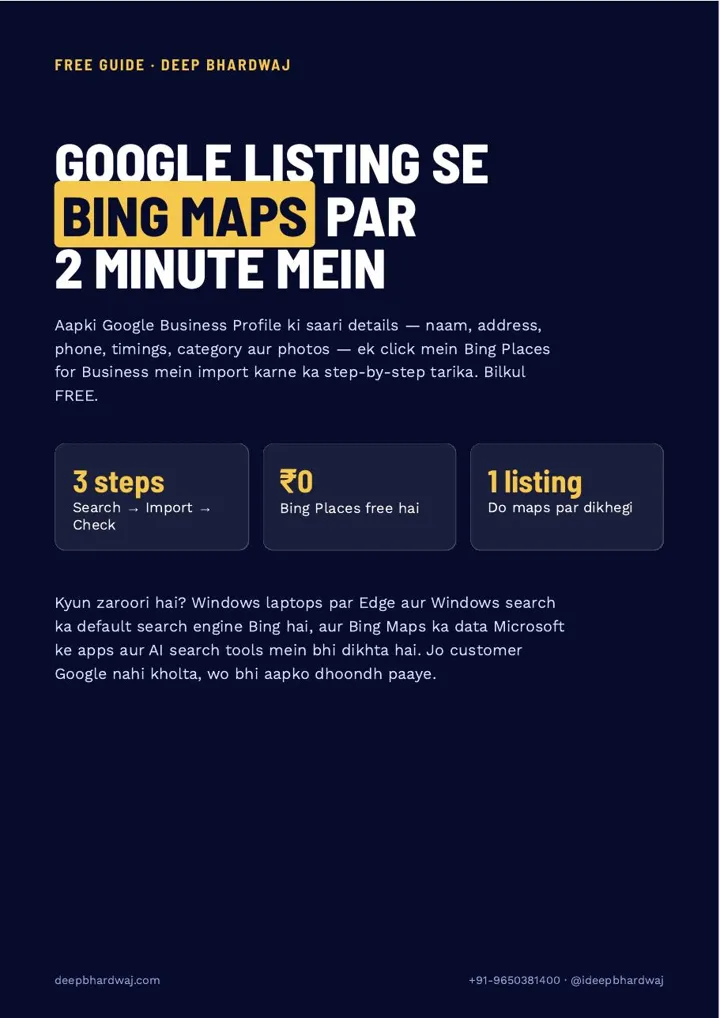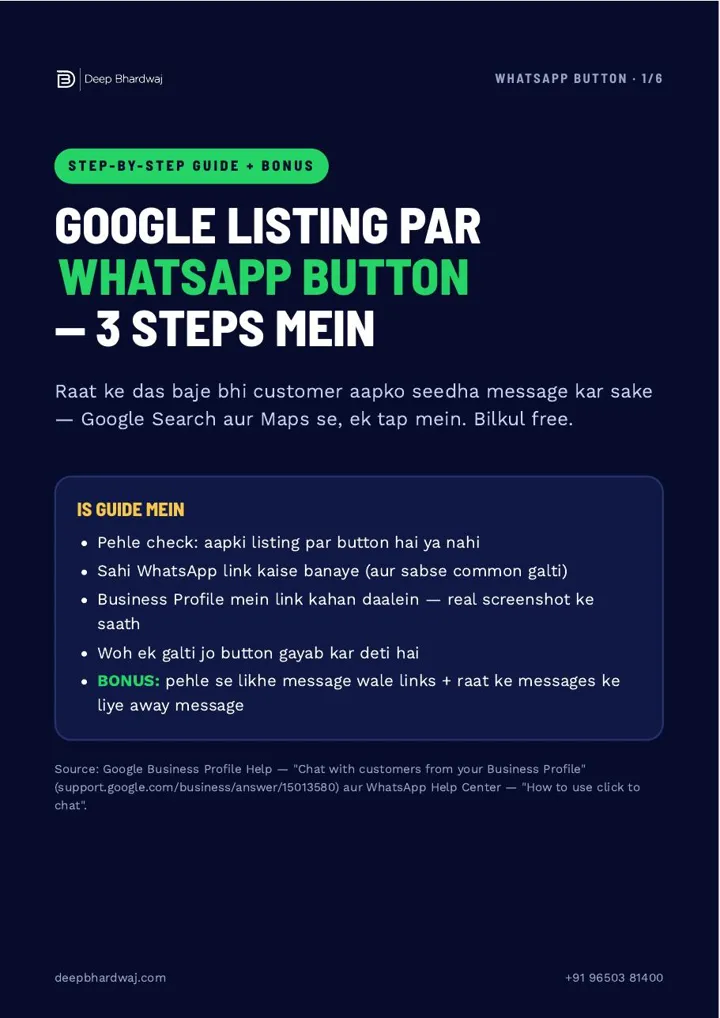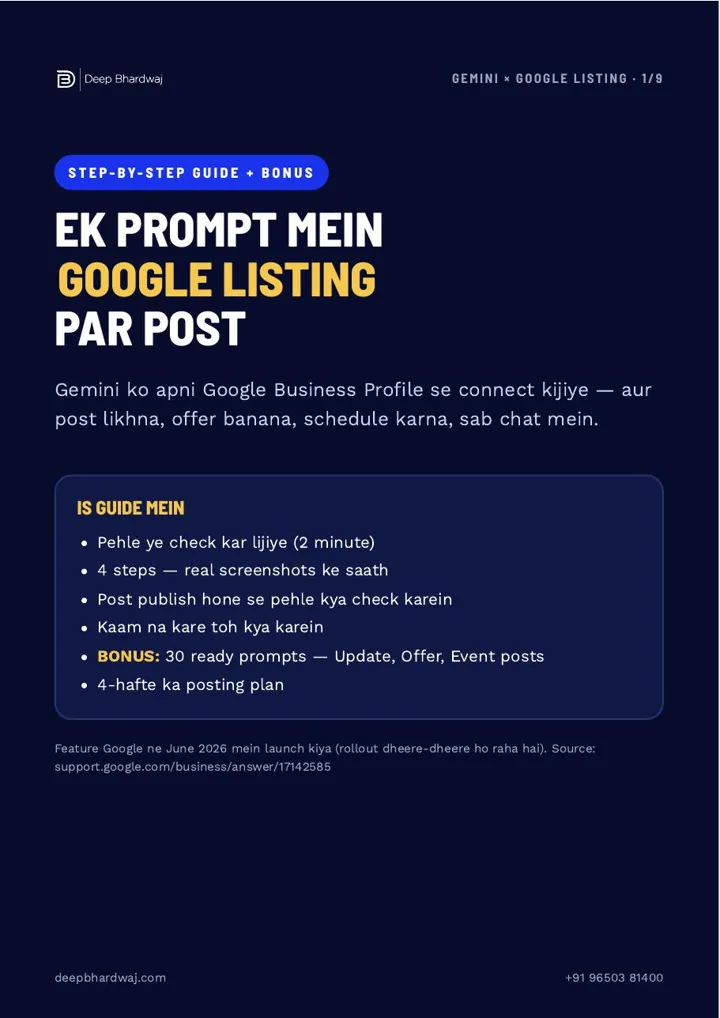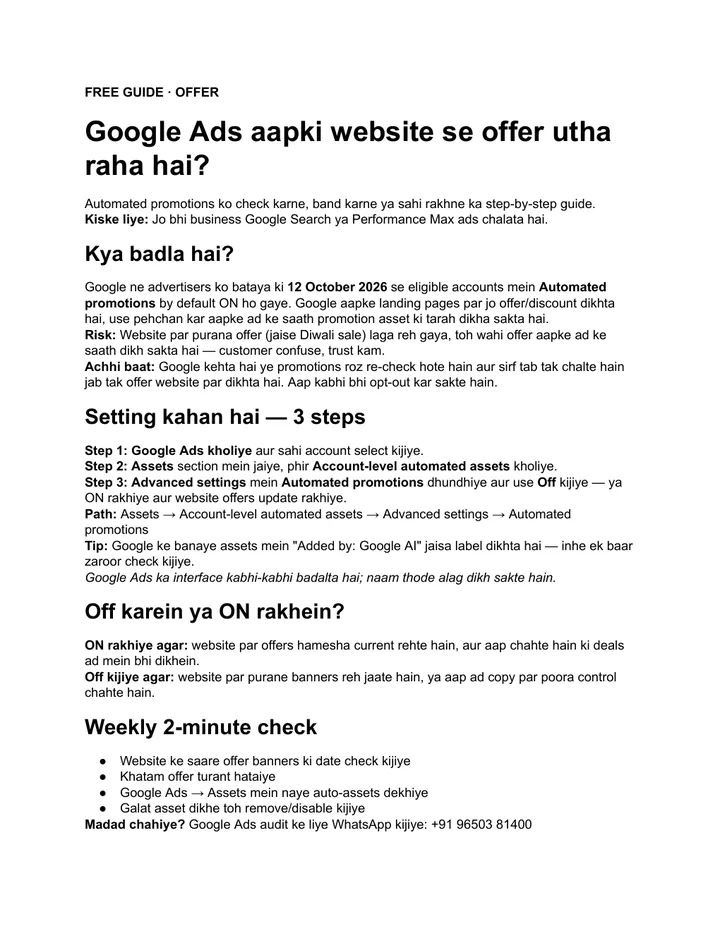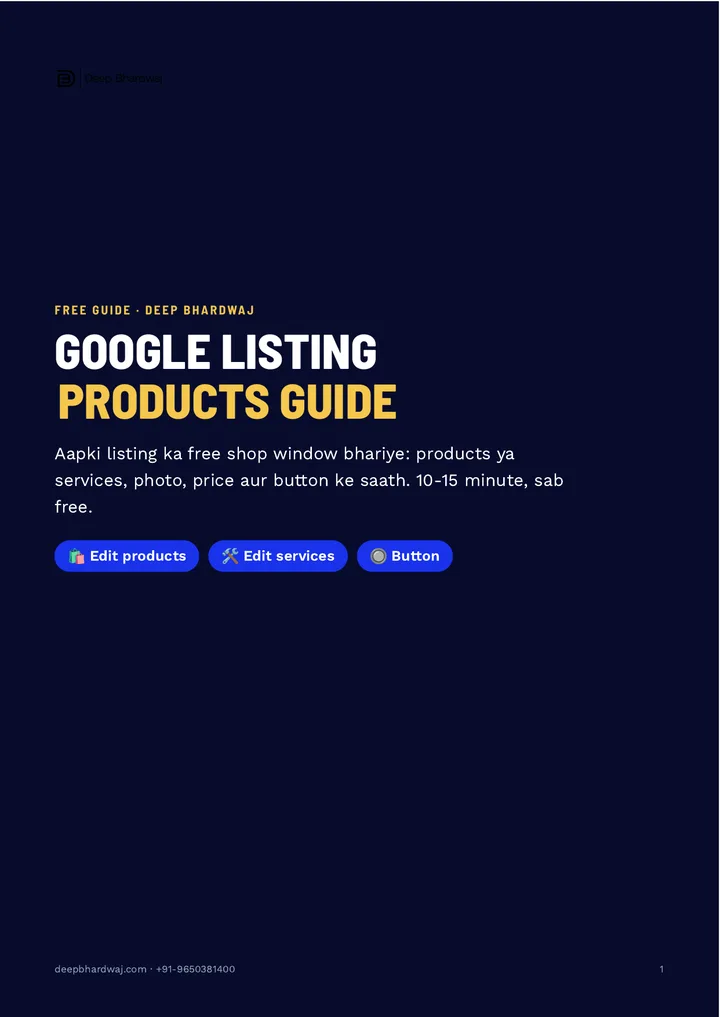

A customer finds your business on Google, sees a name, a phone number and a few photos, and still has to call just to ask what you sell and for how much. Many leave instead. Adding Google Business Profile products fixes that: your cakes, packages or services show up right on the listing with a photo, a price and a button. It is one of the easiest wins in Google listing management for local businesses, and it is free. This page follows the guide’s three steps: open the section, add each product, then write the description and pick the button.
Quick answer: Search your business name on Google and tap Edit products (or Edit services). Tap Add product, then add a real photo, the name customers search for, a category and a price or price range. Write a two-line description, pick a button such as Order online or Learn more, link it, and repeat for five to ten items.
Key takeaways
- The Products section works for any local business, not just online stores.
- Your Business Profile must be verified before Edit products works.
- Each product needs a real photo, a searchable name, a category and a price or range.
- Add a two-line description and a button that links to the right page or WhatsApp.
- List at least five to ten products or services; Google reviews them before they go live.
Contents
Why should a local business add products to its Google listing?
Because the Products section is a free shop window that most listings leave empty. A customer who can see your cakes, packages or service prices right on Google decides faster, without visiting a website first. It is not only for online stores: bakeries, salons, repair services and clinics can all use it.
Think of what a customer sees today. Most listings show a name, a phone number and some photos. A listing with ten clear products, each with a photo, a price and a button, answers the customer’s next question before they ask it. That is the gap the guide fills in about 10 to 15 minutes.
Complete information is also what Google asks for. Its tips to improve your local ranking start with entering complete, accurate business information, and products are part of a complete profile. They work alongside the other Google Business Profile ranking factors that matter most in 2026, not instead of them.
How do I open the Products section on my Google Business Profile?
Search Google for your business name while signed in to the account that manages the listing, then tap Edit products. If you sell services, such as a salon, repair shop, clinic or coaching centre, you will also see Edit services there, and you can fill both. The section only works once your Business Profile is verified.
Before you start, get three things ready:
- A verified Business Profile (without verification this section does not work).
- Three to five product categories, planned in advance.
- A clear photo of every product or service.
Services have their own section and their own guide. If you have not filled it yet, our page on filling the Services section in Part 3 of the series walks through it step by step.
How do I add a product to my Google listing?
Open Edit products, tap Add product, and fill four fields: a real photo, the name customers search for, a category, and a fixed price or a price range. Then add a short description and a button. Repeat for each item until you have at least five to ten products or services on the listing.
- Search your business name on Google and tap Edit products.
- Tap Add product.
- Upload a real, clear, well-lit photo (not a stock image).
- Write the name customers search for, such as “AC Service”.
- Choose or create a category, such as “Cakes” or “Hair”.
- Add a fixed price or a range, such as ₹1,200 – 1,800.
- Write a two-line description and pick a button, then save.
Photos carry most of the weight here. The same rules that apply to your listing photos apply to products, as our page on choosing real photos for your Google listing explains.
What should I write in each product field?
Write for the customer, not for Google. Use the exact name people search for, a real photo, a group name that makes sense to a shopper, and an honest price. Leave out phone numbers or big text on photos, wrong prices and anything you do not actually sell. Accuracy builds trust; tricks get rejected.
| Field | Do this | Avoid this |
|---|---|---|
| Photo | A real, clear, well-lit photo of the item | Stock images, or a phone number or big text on the photo |
| Name | The name customers search, e.g. “AC Service” | Brand slogans or keyword lists |
| Category | A simple group, e.g. “Cakes”, “Hair” | One product per category |
| Price | A fixed price or a range, e.g. ₹1,200 – 1,800 | A wrong or outdated price |
| Description | Benefit plus what is special, e.g. “Eggless option, same-day delivery” | Items you do not actually sell |
The same honesty rule runs through Google’s guidelines for representing your business: the profile should show your real business as customers will find it. A listing that over-promises loses the customer at the counter.
Which button should I add to each product?
Pick the action you actually want: Order online, Buy, Learn more or Get offer. Then link it to the right place, which is your product page, your WhatsApp or your contact page. This is the step most owners skip, and it is the one that turns a viewer into an enquiry.
Products sirf online store wale businesses ke liye nahi hain. (Products are not only for businesses with an online store.)
— Deep Bhardwaj
A button is only as good as the page it opens. If it lands on a slow home page, the customer gives up. Product pages built as fast, focused pages that a listing button can point to keep the journey short. Online sellers can go further with ecommerce SEO for product catalogues, and our Shopify SEO fixes for the product pages of Indian D2C brands cover the website side.
What kinds of businesses can use Google products?
Almost any local business. A bakery can list its cakes, a salon its services, an AC repair business its service packages. Customers see the rate on the listing and decide before calling. Google reviews new products, so they can take some time to go live, and results vary from listing to listing.
Products also work well next to paid campaigns. If you already run Google Ads that promote the same products and offers, a filled Products section gives searchers the same prices and photos in the free listing. And as more searches end on the results page, the ways to win customers when searches end without a click start with exactly this kind of on-listing detail. Keeping prices and photos current every month is easy to forget, so some owners hand it over through monthly SEO plans that include listing upkeep.
Is your Google Business Profile products section working for you?
If it is empty, you are leaving a free shop window closed. Open Edit products, add five to ten items with real photos, honest prices and a button, and repeat for new items. That is how Google Business Profile products turn views into calls and orders. Want a second pair of eyes? Ask for a free check of your listing’s products and services.
Services that help with this
- Local SEO: Products, services, photos, posts and reviews kept complete so your Google listing wins calls.
- Ecommerce SEO: Product pages and catalogues optimised so the listing button lands on a page that sells.
- Google Ads: Campaigns that promote the same products and offers your listing shows.
TL;DR
- The Products section is a free shop window that most Google listings leave empty.
- Open Edit products, then add a real photo, a name, a category and a price.
- Add a two-line description and a button linked to the right page or WhatsApp.
- List five to ten items; Google reviews them, so allow time before they go live.
Frequently asked questions
Why can’t I see Edit products on my Google listing?
The most common reason is that the Business Profile is not verified yet; the Products section does not work without verification. Also check that you are signed in with the Google account that owns or manages the listing. Search your business name on Google while signed in, and the edit options should appear right on the results page.
Can a service business add products on Google?
Yes. Products are not only for shops. A salon can list hair services, an AC repair business its service packages, and a coaching centre its courses. Service businesses also get a separate Edit services option, and you can fill both. Give each item a clear photo, a simple name and a price or price range so customers can decide quickly.
Do I have to show a price for every product?
You can add a fixed price or a price range, such as ₹1,200 to 1,800. A range works well when the final cost depends on the job. Whatever you show, keep it accurate and update it when your rates change, because a wrong price on Google leads to awkward calls and lost trust at the counter.
Why is my product not showing on Google yet?
Google reviews products before they appear, so a new item can take some time to go live. Check that the photo is real and clear, with no phone number or big text on it, that the price is correct and that you actually sell the item. Items that break these basics may be rejected or never show.
How many products should I add to my Google Business Profile?
Start with at least five to ten of your main products or services, grouped into three to five categories. That is enough for a customer to understand what you offer and at what price. Add new items as you launch them, and remove anything you no longer sell so the listing stays accurate.