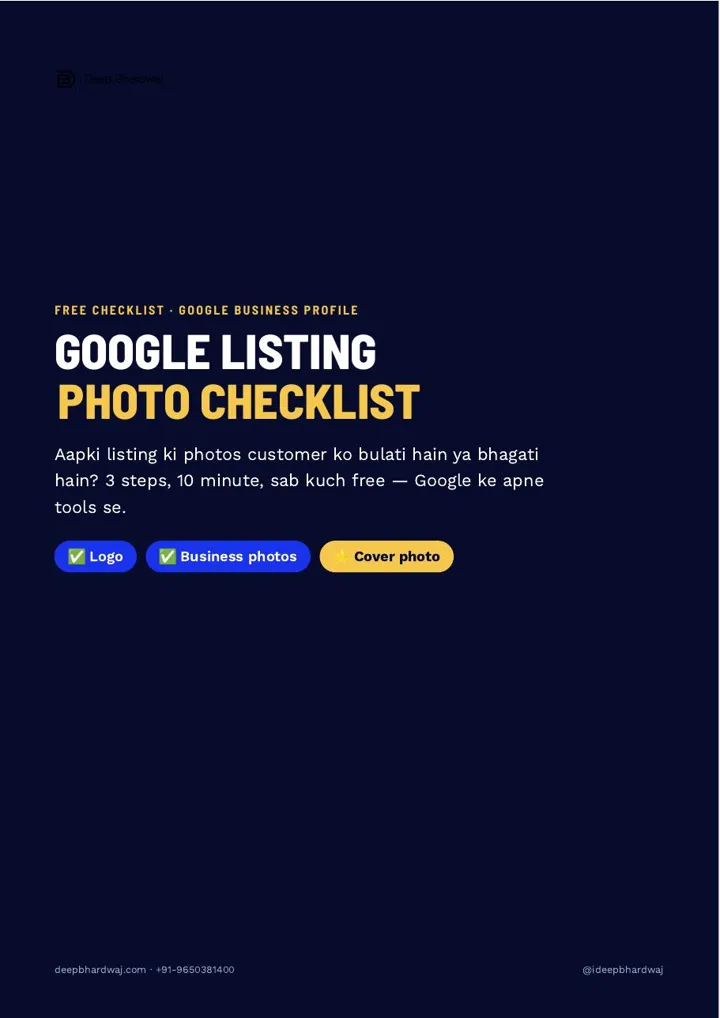

A customer opens your Google listing, looks at the first photo and decides in seconds whether to call. If that photo is dark, blurry or uploaded by a stranger, they move on to the next business. Getting your Google Business Profile photos right is one of the quickest fixes in Google Business Profile optimisation, and it costs nothing. This page follows the three steps from the checklist: add your real logo, upload the right business photos, and set a cover photo you control. It also covers Google’s photo rules and a ten-minute plan you can finish today on your phone.
Quick answer: Search your business name and city on Google, open Photos, then add a square logo, upload outside, inside, team and work photos, and set your clearest photo as the cover. Use JPG or PNG, 10 KB to 5 MB, ideally 720 × 720 pixels. Check every few months that the first photo is still yours.
Key takeaways
- Customers decide from the first photo, so check whose photo shows first on your listing.
- Add a square logo that matches your board, website and visiting card.
- Upload two or three photos each of the outside, inside, team and work.
- Google recommends JPG or PNG, 10 KB to 5 MB, 720 × 720 pixels, in focus and unfiltered.
- Setting a cover photo does not guarantee it shows first, so use your sharpest photo and recheck it.
Contents
Why do Google Business Profile photos decide whether a customer calls?
Because the first photo is the first thing a customer judges. Before reading your reviews or timings, people open your listing, look at the top image and decide in a few seconds whether your place looks worth visiting. A dark, blurry or random photo pushes them to the next listing, even when your rating is the same.
Photos are also part of how Google wants a profile to look complete. Google’s own tips to improve your local ranking list adding photos and videos alongside complete information and reviews. Photos alone will not lift a weak profile, but the Google Business Profile ranking factors that decide map visibility all assume a listing that looks active and real.
How do you check which photo customers see first?
Search your business name with your city on Google and open the Photos tab. Look at the first image and ask one question: did you upload it, or did a customer? Then check that your logo shows, that there is a clear outside photo of your board, and that inside, team and work photos exist.
The guide’s two-minute starting check covers five points:
- Is the first photo yours, or a customer’s?
- Does your logo show at all?
- Is there an outside photo where a customer can recognise your gate or board?
- Are there photos of the inside, the team and the work?
- Is any photo blurry, dark, upside down or heavily filtered?
Each photo shows its source and view count in the corner; the most-viewed one is your shop window, so fix it first.
How do you add a logo, photos and a cover photo?
Search your business name and city, open Photos, then use three buttons in order: add a logo, add your business photos in a set, and finally add a cover photo. The whole job takes about ten minutes on a phone, with no paid tool.
- Add a logo. Photos → Add a logo (or Change logo). Use a square version of the same logo that is on your board, website and visiting card, on a clean background, readable even at a small size.
- Add business photos. Photos → Add photos, and select several at once: two or three each of the outside, the inside, the team and the actual work or products.
- Add a cover photo. Photos → Add a cover photo (or Change cover). Choose your clearest, brightest photo, usually a wide outside or inside shot, with no filter and no text on it.
New photos usually show as pending for a while before they go live, so do not upload the same set twice. Google’s help page on adding and editing Business Profile photos explains each photo type and the upload options.
Which photos should a local business upload, and in what order?
Start with the photos that answer a customer’s first doubts: can I find this place, does it look clean, are real people working here, and what do they actually deliver? The outside photo helps people recognise you on arrival, and the work photos show what they will get.
| Photo | Why it matters | How to take it |
|---|---|---|
| Outside (exterior) | The customer recognises your gate or board on arrival | Daylight, board clearly visible, two or three angles |
| Inside (interior) | Builds trust about the space before the visit | Clean space, lights on, wide angle |
| Team | Real people signal a real business | At the workplace or in uniform, smiling |
| Work, products or services | Shows exactly what you deliver | Real work, before/after, product close-ups |
A clinic, for example, does well with a calm reception and a clean consultation room, which is also what patients look for in search visibility work for clinics and hospitals. A homestay or hotel needs rooms, the view and the entrance; that is the kind of listing we build in SEO for hotels and travel businesses.
What photo quality rules does Google set?
Google asks for JPG or PNG files between 10 KB and 5 MB, with a recommended 720 × 720 pixels and a minimum of 250 × 250. Photos should be in focus, well lit and without heavy filters or editing, so the image represents the place as it really is.
A phone camera is enough: wipe the lens, hold the phone horizontally and shoot in daylight.
Mistakes that send customers away: only stock photos, dark night shots, tilted images, an old board, or a phone number written across the photo. The same care applies to photos on your website, where file names and alt text for product images help those pictures show up in Google Images.
Why can a customer’s photo replace your cover?
Because choosing a cover photo does not guarantee it shows first. Google’s help page says that in some instances the cover you set will not appear as the first image. In the guide’s reading of that rule, a weak or low-quality cover is exactly when a customer’s photo is likely to take the top spot instead.
Google listing ki pehli photo aapne lagayi hai, ya kisi customer ne? (Did you put up the first photo on your Google listing, or did a customer?)
— Deep Bhardwaj
So keep the cover in your own hands: use your sharpest photo, check every two or three months that the first image is still yours, and report any customer photo that is wrong or misleading by opening it and using the report option. Google’s prohibited and restricted content policy for Maps explains what user content it removes.
Customer photos are not the enemy, though. Real photos from happy customers build trust in the same way as reviews, and our guide on getting more Google reviews in India without breaking the rules shows how to ask for both. Photos also work inside updates: the four-week Google posts plan pairs each post with a real image.
What does a 10-minute photo plan look like?
Minutes one and two: search your name and city and check the first photo and logo. Minutes three and four: add the real square logo. Minutes five to eight: add outside, inside, team and work photos, two or three of each. Minutes nine and ten: set the cover. Then repeat a short check every month.
Each month, add three or four new real photos, look at which photos get the most views, and report anything wrong. Listings that look current also hold up better as search shifts toward AI answers, which is why small businesses can still win the map pack after AI Overviews with accurate, active profiles.
If you would rather hand this over, our digital marketing team manages listings, websites and ads together, and you can see results from our client work before deciding.
Are your Google Business Profile photos working for you?
Check them today. Google Business Profile photos are free to fix and take about ten minutes: a real logo, clear photos of the outside, inside, team and work, and a cover you chose yourself. Not sure what your listing looks like to a customer? Ask for a free audit of your Google listing and we will review it for you.
Services that help with this
- Local SEO: Google Business Profile photos, posts, reviews and details managed so your listing wins calls.
- Digital marketing: Listings, website and ads run together so every customer sees the same strong brand.
- SEO for hotels and travel: Listings and pages built around the photos guests use to choose where to stay.
TL;DR
- The first photo on your Google listing decides whether many customers call.
- Add a real logo, then outside, inside, team and work photos, then a cover.
- Follow Google’s rules: JPG or PNG, 10 KB to 5 MB, 720 × 720 pixels, no heavy filters.
- Recheck the first photo every few months and report misleading customer photos.
Frequently asked questions
Can I delete a customer photo from my Google listing?
You cannot delete a photo that a customer uploaded, because it belongs to their account. What you can do is open the photo and report it if it is wrong, misleading, offensive or not of your business. Google reviews the report against its content policy. Meanwhile, uploading more clear photos of your own and setting a strong cover reduces how often customer photos show first.
Why is my uploaded photo not showing on Google?
New photos often stay pending for a while before they appear, so give them a day or two before uploading again. If a photo still does not show, check that it is a JPG or PNG between 10 KB and 5 MB, in focus and without heavy filters or large text. Photos that break Google’s content rules may never go live.
How many photos should a Google Business Profile have?
There is no fixed number that guarantees results. A practical start is two or three photos each of the outside, inside, team and your work or products, plus a logo and a cover. After that, add three or four fresh, real photos every month so your listing keeps looking active to customers browsing Google Maps.
Should I add photos with offers or phone numbers written on them?
Avoid it. Photos with large text, phone numbers or offer banners look like ads, put off customers and can go against Google’s guidance that photos should represent reality. Keep text for your business description and Google posts. Let the photos show the real place, team and work, which is what customers want to see before visiting.
Do Google listing photos help ranking on Google Maps?
Google lists adding photos among its tips for a complete, engaging Business Profile, but photos alone will not push a listing to the top. Ranking depends mainly on relevance, distance and prominence. What good photos clearly do is turn views into calls and direction requests, because customers trust a listing that looks real, current and well cared for.