
Christmas and New Year are close, and many shops, clinics and offices will close or work shorter hours. If your Google listing still shows “Open”, a customer travels to your door, finds the shutter down and goes to a competitor next time. Setting Google Business Profile holiday hours, which Google calls special hours, fixes this in about two minutes. It is one of the small jobs our local SEO and listing management service never skips. Below are the three steps, the dates to fill in now, the three mistakes that show wrong timings, and a quick monthly check so customers always see the truth.
Quick answer: Search your business name on Google while signed in, tap Edit profile, then Hours, then Special hours. Add the holiday date and choose Closed, or enter the shorter hours. Save without changing your regular hours, add dates at least a week ahead, and confirm when Google asks, or your listing may show “Hours might differ”.
Key takeaways
- Special hours change one date only; your regular hours stay as they are.
- The path is Edit profile → Hours → Special hours → Add a date.
- Add holidays at least a week ahead, because customers plan visits in advance.
- Confirm upcoming holiday hours when Google asks, or the listing may say “Hours might differ”.
- Check your listing on your phone once a month and fill the next 30 days.
Contents
Why do holiday hours on Google matter so much?
A customer checks your listing, sees “Open”, travels to your shop and finds the shutter down. They don’t blame Google. They blame you, and next time they go straight to a competitor. Closing for a festival is normal. Not telling Google is the mistake, and it takes two minutes to fix.
Your listing is often the only thing a customer checks before leaving home. Google says that complete and accurate business information helps it show your profile to the right people, and timings are part of that information. Wrong timings cost you twice: the wasted trip today, and the trust you lose for every visit after it.
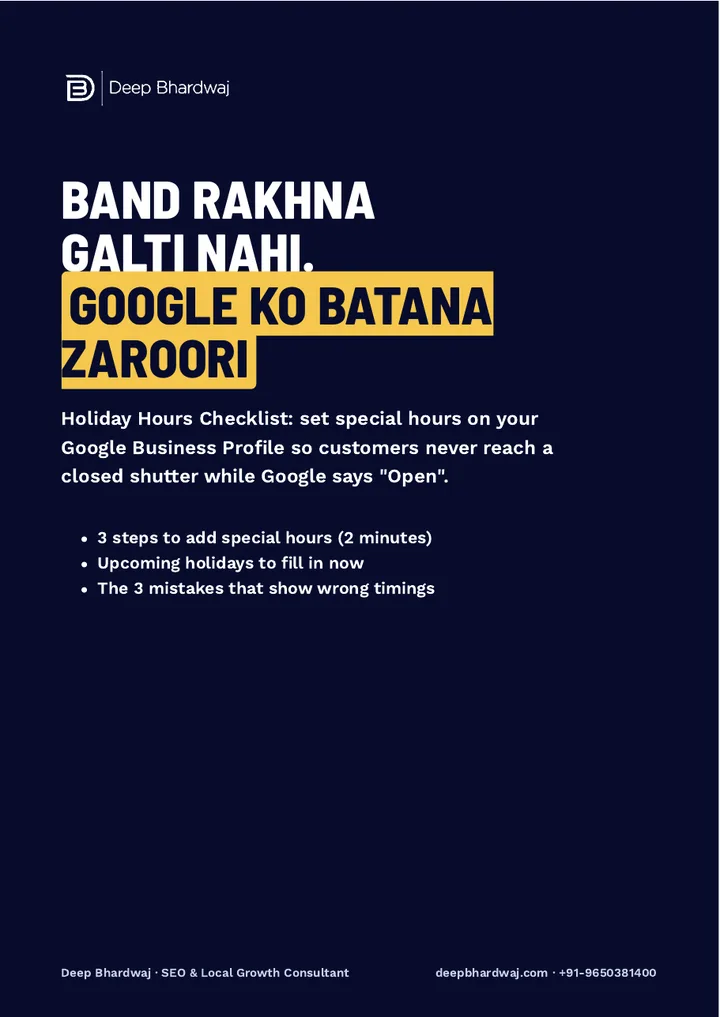
Holiday par business band rakhna galti nahi. Galti hai Google ko na batana. (Closing for a holiday is not the mistake. Not telling Google is.)
— Deep Bhardwaj
How do I add special hours on Google Business Profile?
Sign in with the Gmail that manages your listing, search your business name on Google, tap Edit profile, then Hours. Open Special hours, add the holiday date and choose Closed, or enter the shorter hours if you are open for part of the day. Save, and leave your regular hours exactly as they are.
- Search your business name on Google while signed in with the Gmail that manages the listing, or open the Google Maps app and go to your profile.
- Tap Edit profile, then Hours.
- Open Special hours and tap Add a date.
- Pick the holiday date. Choose Closed if you are shut, or type the shorter hours if you are open for part of the day.
- Tap Save. If Google later asks you to confirm hours for an upcoming holiday, confirm them.
That is the whole job. Special hours sit on top of your regular hours for one date only, so the next working day shows your normal timing without you touching anything. Keeping small details like this current, month after month, is part of the work our digital marketing team for Indian businesses does for clients.
Which holiday dates should I fill in now?
Fill in every closure or early close for the next two months today, not the night before. The guide lists Christmas on 25 December 2026, New Year’s Eve on 31 December, New Year on 1 January 2027, Makar Sankranti, Lohri or Pongal around 14 January 2027, and Republic Day on 26 January 2027.
Two of these need a little thought. New Year’s Eve is often an early close rather than a full holiday, so enter the shorter hours instead of Closed. Makar Sankranti, Lohri and Pongal fall on different days in different places, so check your local date before you add it. For Holi, Eid, Diwali and other festivals, the dates change every year, so add them as soon as they are announced.
If you also run Google Ads, check that your ad schedule matches the days you are shut. Paying for clicks from people who will find a closed shutter is money lost. Our pay-per-click management service handles exactly this kind of calendar work along with the campaigns.
What mistakes make Google show the wrong timings?
Three mistakes cause almost all wrong timings: changing your regular hours for one holiday, adding the holiday after the day has passed, and ignoring Google’s prompt to confirm upcoming hours. Each one is easy to avoid once you know it, and the right way takes the same two minutes.
| What owners often do | What happens | The right way |
|---|---|---|
| Change regular hours for one holiday | They forget to change them back, and every normal day shows the wrong time | Use Special hours for that one date only |
| Add the holiday on the day, or after it | Customers who planned their visit earlier already saw “Open” | Add special hours at least a week ahead |
| Ignore Google’s confirm prompt | The listing can show “Hours might differ” | Confirm upcoming holiday hours when Google asks |
The first mistake is the most expensive because it spreads. One festival becomes weeks of wrong timings, and customers stop trusting what your listing says. Google’s guidelines for representing your business expect the details on your profile to match how you really operate, so keep regular hours for regular days.
The third mistake is the quietest. “Hours might differ” sounds harmless, but it tells a customer to doubt you before they leave home. Accurate details are one of the basics covered in our look at which profile signals still help you rank on Maps in 2026.
Where else should my holiday timings match?
Your timings also appear on your website’s contact page, on directories and in the answers ChatGPT and Gemini give about you. If one says closed and another says open, customers don’t know whom to believe. Update the listing first, then make sure your website says the same thing for the same dates.
A short notice on the contact page, such as “Closed on 25 December, open as usual from 26 December”, is enough. If changing your own site is slow or needs a developer every time, a site you can update in minutes for holidays and offers pays for itself in seasons like this.
AI assistants matter more each year, because customers now ask them for timings too. If they keep giving the wrong answer, follow our guide on fixing wrong business details in ChatGPT and Gemini, and see how our work on how AI assistants describe your business keeps those answers correct.
How do I keep my Google timings right all year?
Do a two-minute check once a month. Open your listing on your phone and confirm today’s hours match reality, look for any holiday in the next 30 days without special hours, and update regular hours properly when your timing changes for winter or summer. That routine catches problems before customers do.
- Today’s hours: open your listing on your phone and compare it with your real timing.
- Next 30 days: any holiday or early close without special hours? Add it now.
- Season change: if your timing shifts for winter or summer, change the regular hours properly, not as special hours.
Clinics feel wrong timings more than most, because patients often travel far for an appointment. Our local SEO checklist for doctors and clinics covers the other listing details they should check. For a broader routine, see what a good monthly SEO plan should include, or pick one of our monthly SEO plans that include listing upkeep and checks.
If calls are low even when your timings are right, the problem may be elsewhere on the profile. The guide on why a Google listing gets views but no calls is the next step.
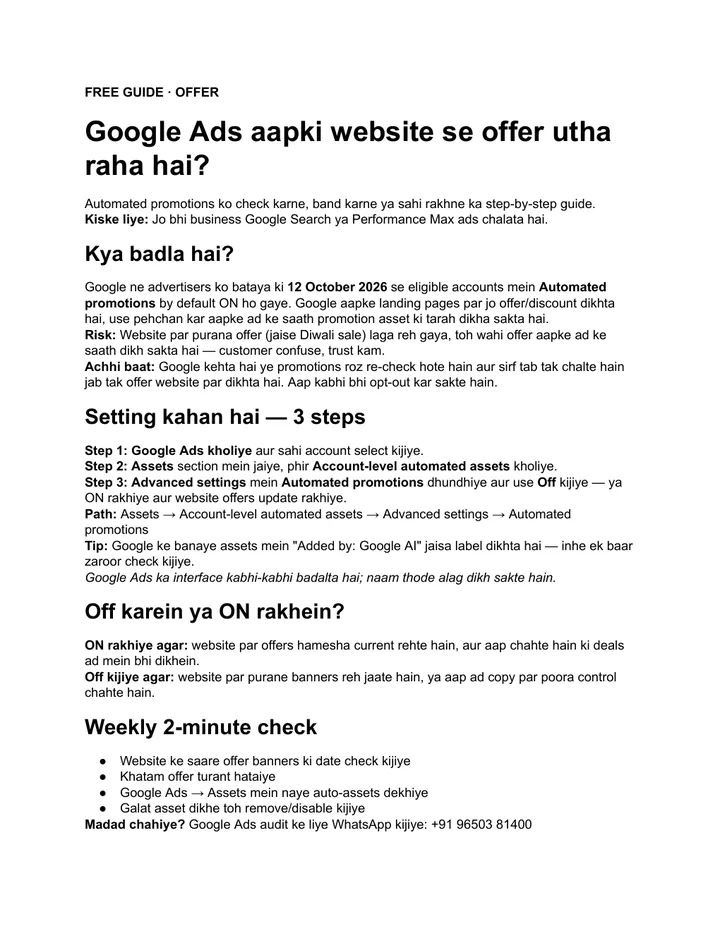
Set your holiday hours before the season starts
Holiday closures are normal; a listing that says “Open” while you are shut is not. Set Google Business Profile holiday hours for every date in the next two months today, confirm them when Google asks, and keep regular hours untouched. Not sure what else your listing is getting wrong? Ask for a free review of your Google listing and timings.
Services that help with this
- Local SEO services: Ongoing Google Business Profile upkeep, including timings, special hours, categories and reviews.
- Website design: A website whose contact page and timings you can update yourself, so it always matches your listing.
- Free SEO audit: A free review of your listing and website that shows which details are costing you visits.
TL;DR
- A listing that says “Open” while you are shut sends customers to competitors.
- Add special hours under Edit profile → Hours → Special hours; don’t touch regular hours.
- Fill in Christmas, New Year, Sankranti and Republic Day now, and other festivals once dates are announced.
- Confirm hours when Google asks, and check your listing on your phone every month.
Frequently asked questions
Will setting a holiday as closed hurt my Google ranking?
Nothing Google has published says that marking a holiday closure hurts your ranking. Accurate information is what Google asks for, and special hours exist so you can show real closures without changing your regular timing. The bigger risk is the opposite: customers who arrive at a closed shop because the listing said open are less likely to trust or choose you again.
Can I add special hours for many locations at once?
If you manage several branches, do it for each listing so every location shows its own holiday timing. Branches often close on different days, especially for regional festivals like Pongal or Lohri, so don’t copy one date to every city without checking. Keep a simple list of each branch’s closures and work through it two months ahead.
What should I do if my shop is open on a public holiday?
Add special hours for that date anyway and enter your real opening hours. Customers often assume businesses are shut on public holidays, and Google may ask owners to confirm holiday timings. Showing that you are open, with the exact hours, can bring in customers whose usual choice is closed that day.
Why does my listing say “Hours might differ”?
This usually appears around holidays when Google is not sure your normal hours apply. The fix is to add special hours for the date, or confirm your hours when Google asks you to. Check the listing on your phone afterwards to see that the warning has gone and the right timing shows.
How do I change my timings for winter or summer?
A seasonal timing change is not a holiday, so update your regular hours under Edit profile → Hours instead of using special hours. Change them on the day the new timing starts, and change them back when the season ends. Update your website’s contact page on the same day so both say the same thing.